Midi Piano Music
with
MUSICARTA
Welcome to MIDI piano music, a collection of piano lessons online and creative keyboard tips and techniques! Where young keyboard players and adult re-starters, songwriters and budding composers will find creative ideas for home study, music theory work-outs and a wealth of starting points for keyboard exploration and improvisation.
Welcome to Musicarta’s MIDI piano music!
NB! Site reorganisation, Jan 2021
If you're actually looking for the 'midi_piano_music' web page, please click through here. (Sorry for the inconvenience!)
If you're interested in improving your musical keyboard creativity, stick around and see how Musicarta can help!
What's Musicarta about?
|
“I have never seen such a clever piano teaching method as yours. I know my chords, but wasn’t able to use them fluently or combined in such clever riffs and impressive rhythms. I wish I had known about such study material earlier!”
Rainer, Switzerland
|
Musicarta offers a structured and creative home-study approach to learning popular music performance styles and theory online - from scratch and all the way up.
For many people – adults with busy lives, young or semi-pro musicians wanting to up their game and anybody living far away from possible teachers - organising your own learning is the only alternative.
Musicarta is here to help you succeed in doing just that – and have a great time doing so!
Site content and navigation
|
“Just wanted to thank you for this rich and beautiful website! It’s so hard to find good, accessible online help and your site is perfect for me. Thank you!”
Norbert, Warsaw, Poland
|
Musicarta has hundreds of web pages packed with learning material and creative ideas. To help you navigate the site and find the material you need to progress as a musician, the contents are grouped on the main left hand navigation bar (navbar) as follows.
First come the 'main course' study courses: The Pyramids Variations, The Canon Project, the Pentatonics Workbook, Key Chords Volume 1, Musicarta Easy Piano Style, etc. - all-level courses which combine explorations of the various ways you can put music together at the keyboard with tuneful, modern-styles original repertoire.
|
“Today, I worked through all of Part 1 of the Pyramids Variations course. I love it! Your teaching style is so clear and teaches much more than just the classical way of playing the notes on the page, which I appreciate. I’m planning to get the Canon Project course as soon as I finish this one.”
Jeanne
|
Below these are the repertoire offerings - Solos Volume One, 'Mariaan', 'Majestic River', 'Greensleeves' and more. These are all achievable solos, lighter on theory and long on practical teaching, with satisfying 'stepping-stone' performances all the way through.
Listen to 'Chords for Carl' as you browse:
Click down to the Repertoire Section here.
Next come the Study Focus home pages. Whether it's focused practice on rhythm and syncopation, or learning about chords, scales or inversions, you can dip in anywhere and access a wealth of creative home study material.
Click down to the Study Focus section here.
Below these are the rest of the Musicarta admin tabs.
But right now, let's get down to thinking in a detailed way about your own possible way forward with Musicarta.
The Musicarta digital home-study courses
|
“I have made really good progress on the Pyramids Variations. The information that you connected me to hints at all that I aspire to in my piano studies; greater chord fluency and being able to play by ear.”
Chris, Cape Town
|
Musicarta’s recommendation for
getting your own study programme under way would be one of the Musicarta digital
home-study courses.
Purchase gets you:
- An illustration and music-rich workbook PDF to print/study from;
- Access to password-protected web-page lessons with video and audio demonstrations of the learning material.
- Play-along backing and drum tracks and other useful resources (see download home pages for exact specs).
- On-going exploration of course material to keep your interest fresh.
Some Musicarta courses are also available on third-party video hosting services (see course ads) - but please purchase direct from Musicarta! It's much more convenient to study from web pages with embedded section videos than it is to scroll through one long video...
Here are snapshots of the seven principal Musicarta workbooks, with links through to more comprehensive try-before-you-buy sample content pages.
The Pyramids Variations
|
“I started an internet piano course about a year ago, but playing ‘Rain, Rain, Go Away’ is no fun for a man of 65. Your Pyramids Variations is different. I can practice until I’m tired and still enjoy it, and I hum it all day instead of old folk tunes. So, thanks!”
Gideon, Netanya, Israel
|
Musicarta's flagship Pyramids Variations course aims to exceed expectations by coaching beginners and re-starters to an impressive ‘Concert Performance’ performance and a host of variations all based on a simple hand position, with key aspects of music theory explained along the way.
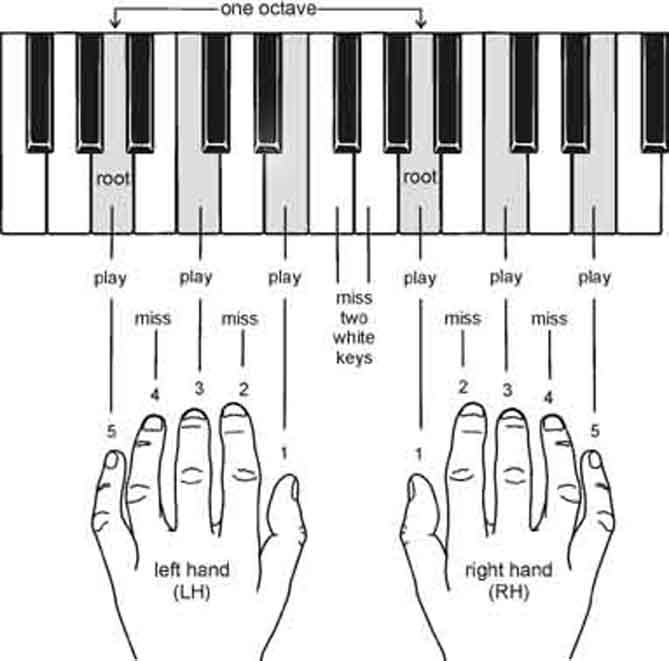
Below is a picture of the 'Basic Music-Making Position' and an audio of the first-lesson performance you play from a chord chart.
|
Below is a video of the Lesson Eight 'Concert Performance' you build up to over the first eight lessons. Note that you don’t have to read music to make swift progress - even the Concert Performance is based on a simple hand position, and the parallel Pyramids Variations web pages have videos of all key stages of the learning material. |
 |
After building up to the Concert Performance, you explore a set of variations which show how a creative contemporary keyboard player can play a chord sequence in any number of ways.
Listen to a few of these examples.
|
Developing the Bass Line Pyramids in Four-four |
Descending Inversions Circle of Fifths |
The Pyramids Variations offers a great entry-level introduction to the endless delight of “messing around with chords”! Don't leave in a hurry and miss out - click through to the Pyramids Variations home page for more try-before-you-buy sample material.
|
The PYRAMIDS VARIATIONS With website audio and video support, the Pyramids Variations provides methodical support for your creative journey, offering pianists of all ages and stages fast-track guidance to a performance beyond expectations and a practical, step-by-step introduction to 'composing at the keyboard'. |
|
Click through to the Pyramids Variations YouTube playlist here.
'Build' - a new way to learn!
Traditional piano teaching works through pieces from the start to the finish – so you can really only ‘play’ a piece when you’ve learned all the way to the end. The Musicarta home-study material is structured differently, and builds from simple ‘stepping-stone’ performances to advanced final versions.
Listen to these three Pyramids Variations performances to hear how they develop the same basic music from simple to advanced.
|
A run through the chord sequence in the 'basic music-making position'. |
| ||
|
A chord-tone melody added on top of the chord sequence texture |
| ||
|
The same material doubled to 'four-chord' width with the tune on top as before. |
|
Practicing can easily become "a rod for your own back", but with Musicarta’s ‘build’ learning system, you always have the satisfaction of a performance you can be proud of – and encouragement to press on further!
The Pentatonics Workbook
|
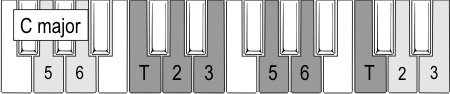
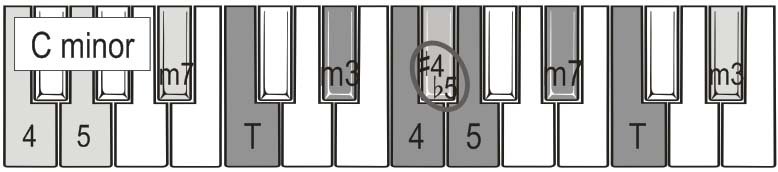
Pentatonic scales have five notes – two of the notes in the ordinary scale are missed out. There are two pentatonic scales, a pentatonic major and a pentatonic minor - the pairs of major-minor scales actually use the same five notes. |
  |
These scales are easy to learn and generate lots - probably most - of the music you hear every day, from pop tunes, blues and heavy metal through to mainstream rock jamming.
You'll recognise the sound of the minor pentatonic instantly. Here's one of the first pieces in the workbook.
Pentatonic scales are great for improvising because they provide a limited set of notes which sound good over a maximum number of chords. Because there are only five of them, it’s easier to pick a note, and it’s more likely to be a good one.
The Musicarta
PENTATONICS WORKBOOK
|
The immediately recognizable five-tone pentatonic scales are easy to find and underpin much of the popular music we all love. The Musicarta Pentatonics Workbook is a fully featured video course with 50+ web-page lessons, accessible to players of all levels and orientations. This workbook is sure to give your musical adventuring a powerful boost! |

|
|
Click through to the Pentatonics Workbook YouTube playlist here.
Also available on Musicarta Patreon.
Like all Musicarta material, the Pentatonics Workbook provides the progressive exercises you need to build true creativity. Here's you learning the C major pentatonic scale tones, for example.
Baby steps, but you're on your way either of these examples - a major scale-tone study or a minor blues workout. Take your pick!
|
|
|
Learn more about the Musicarta Pentatonics Workbook on the expanded content sample pages.
Musicarta Patreon
Musicarta Patreon offers an alternative or supplement to the Musicarta workbooks and free www.musicarta.com lessons.
Great value at just $5.00 per month, you get access to:
- 'The Pyramids Variations'
- The Musicarta Beat and Rhythm Workbook
- The Musicarta Video Hanon
- 'Chords 101' (exclusive content)
- 'Majestic River' piano solo
- Musicarta Easy Piano Style video upgrade lessons
- 'Greensleeves' Piano Solo
- The 'Pentatonic Hanon' exercises (unabridged)
- Songbook + LH-over style + Enya solos - and lots more...!
Open the project home pages to view sample material or just sign up here and supercharge your creative journey!
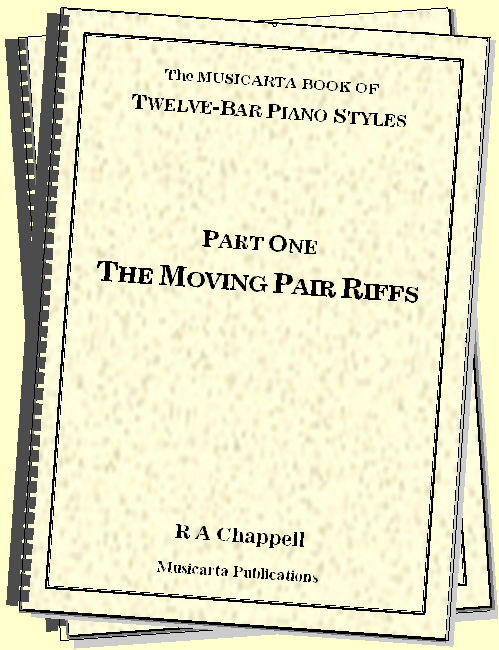
Twelve-bar Piano Styles Workbook
The twelve-bar blues form, in its many guises, has practically universal appeal, and there’s hardly a pop/rock/jazz musician who can’t play along to some extent. With its simplicity of form and driving rhythm, the twelve-bar is an ideal pop-rock musical training ground and a great warm-up for any music-making.
|
Part One of the Musicarta Twelve-bar Piano Styles workbook kicks off
with a riff you're sure to recognise straight away – play the
first audio and see if you don’t! |
| |
|
The music in the next audio clip is generated from the same notes, but re-arranged. Can you hear how it’s been done? |
|
The answer is that the thirds in the first example have been 'inverted' into the sixths in the second one.
This is what makes the Twelve-bar Piano Styles workbook so much more than just a collection of riffs! 'Theory you can use' means you actually learn how to put together your own riffs, as well as seeing how the masters do it!
Part Two of the workbook goes on to teach the harmonic and rhythmic building blocks you'll need for your own ever-expanding twelve-bar keyboard 'chops'. Here are some of the riffs you'll learn.
|
Musicarta looks out for learners at every level! Here's a simple, methodical study to drill the three groups of note you need for any twelve-bar. |
| |
|
Twelve-bar styles permeate regular pop music. Here's a twelve-bar riff that's a world away for 'the blues'. |
| |
|
The twelve-bar is a great source of impromptu duets. Here's a big-band style swing duet for a couple of boogie buddies. |
| |
|
And here for the diehards is a proper straight-eight driving boogie in the old style! |
|
|
So don't be misled into buying expensive, impossible-to-play boogie transcriptions! Build you own achievable, fun twelve-bar styles from the ground up. Click through to browse the Mister Musicarta Twelve-bar YouTube playlist. Remember - the online workbook has the teaching versions of these public videos! |
|
The Canon Project
|
“Thanks for a great site! I’ve been working through the Canon Project at my own pace. The material is superb and I appreciate the obvious time and skill you’ve brought to it.”
David, Ardross, Australia.
|
Pachelbel’s Canon in D is perhaps the most famous chord sequence of all time, and its regular structure makes it the ideal place to start learning about harmony, playing chord sequences, melody writing and improvisation.
The first two audio samples below are
of a learner practising musical elements over the backing tracks (included), and a fuller
performance.
|
First, the string of thirds from the first lesson, played over a backing track. Notice that you're already improvising with some 'next-note-above' notes. |
| |
|
Now here's a two-handed triad improvisation, again with some 'next-door' notes. |
|
The Canon chord sequence forms the basis of numerous other pieces of popular music too, and you’ll be able to apply what you learn in the Canon Project modules to lots of other chord sequences going forward.
|
This example shows a possible 'pop-classical' treatment of the Canon chord sequence. |
|
The Canon chord sequence is a perfect introduction to that most wonderful of pastimes - 'messing around with chords'. (Mister Musicarta caught the bug early, and has no intention of giving it up!)
|
Here's a 'Canon Diary' entry. (Musicarta Diary entries are 'ongoing development' posts that keep the pot simmering, so that you continue to reap the benefits of your in-depth studying.) NB: All this talk of 'AABA structure', 'modulating back from F' and so on will make complete sense by the time you get there! |
|
In fact, if you can play and understand the Canon chord sequence, there isn’t much in popular music harmony you won’t be able to figure out.
|
The Canon Project also provides an excellent opportunity to develop your musical ear, and work towards being able to tell just by listening what chords are being used in most mainstream popular music. Click through to the Canon Project YouTube playlist and the course home page for more sample material. |
|
Musicarta Key Chords Vol. 1
Most of the music we hear is built on just
four of the chords in a particular key. Guitarists regularly learn
these chord families as a matter of course, and seem to be strumming along with
the pop classics in no time at all.
|
“Thank-you for your excellent website. I found your website good for me and other people who don’t like music theory. It has increased my self-confidence and now I play from sheet music, which always used to scare me.”
Mohammad, Tehran, Iran.
|
Musicarta Key Chords Vol.1 aims to make it just as easy for keyboard players.
Key Chords builds your chord vocabulary by progressively introducing the 'key chords' - the tonic, subdominant, dominant and relative minor (I, IV, V and vi) – and practising changing between them in contemporary riffs, with easy step-by-step rhythmic build-up of impressive keyboard syncopation. (Drum backing tracks are included to help keep the notes coming.)
Here are the exercises for the first two
pairs of chords and the first three chords combined.
|
Chords I and IV (tonic and subdominant) in a riff that rises through the three inversions of the chords. |
| |
|
Chords I and V (tonic and dominant) practised in the same methodical way. |
| |
|
A familiar I-IV-V riff rising through the inversions. Real skills, real chord vocabulary. |
|
Only a methodical approach like this will give you true creative skill, way beyond copying this riff or that one!
|
Here's a piece from the Solos Album No.1 - 'The Scene Changes' - which developed out of the Key Chords material. (You might be able to hear the bass line moving vi-IV-V-I.) |
|
|
Musicarta Key Chords shows you which chords go together – and how to learn them. As you build real hands-on familiarity with the key chord families, you’ll find you start hearing which chords are being used in pop hits, and will be able to play by ear with increasing confidence. |
 |
|
Musicarta News and discount codes
Subscribe to the monthly Musicarta newsletter for introductory offer prices on new releases, reward discounts on regular courses - and encouragement to keep your creative flame burning bright! |
|
The Musicarta Easy Piano Style
|
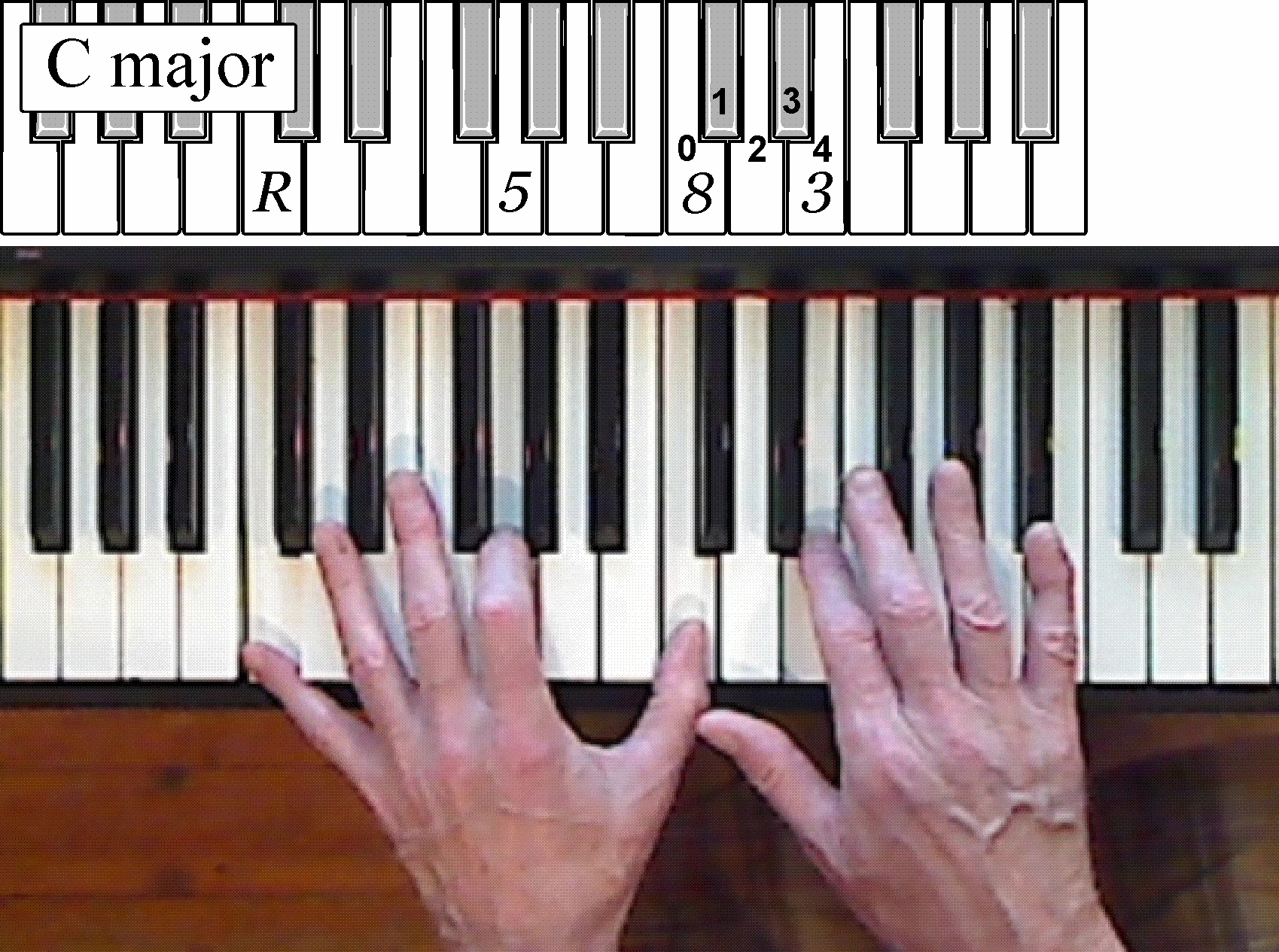
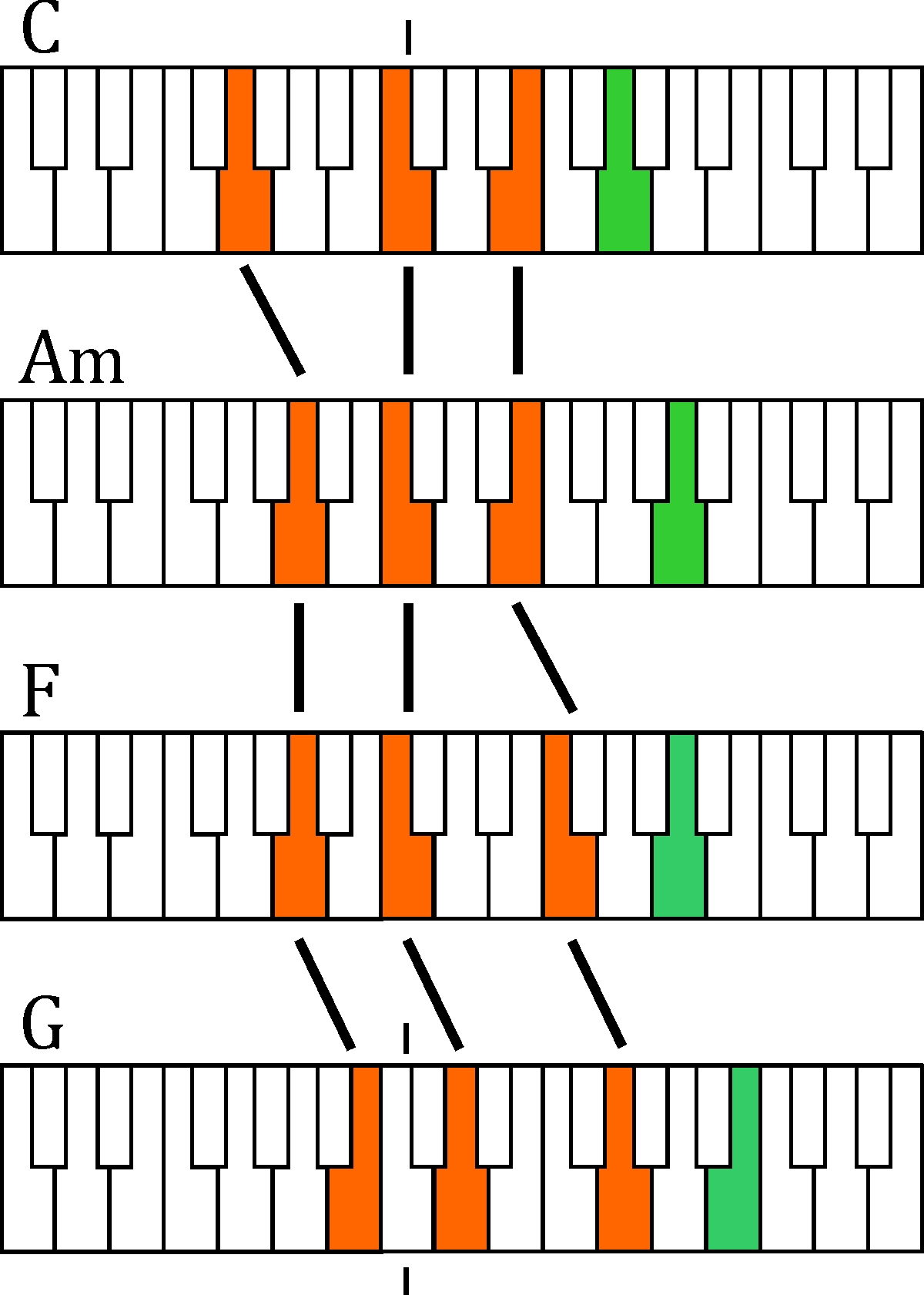
The Musicarta Easy Piano Style - like the Pyramids Variations - offers another hand position that will let you "just sit down and play". Here's the position for 'C major'. Below, you see the (optional) music for the left hand rhythmic texture with the right hand playing a melody by rocking around its note - the 'third'. |
 |

If you use this pattern and the one a key to the right ('up'), you can easily make up pieces like these.
|
|
|
Musicarta Easy Piano Style Workbook
|
The Musicarta Easy Piano Style shows you how to get your hands on the keys and start making music right away! With lots of graphics, full audio and MIDI support and all the solos on the Mister Musicarta YouTube MEPS video playlist, you’re guaranteed to get some beautiful pieces into your repertoire quickly – and learn how to find the music in the keyboard for yourself! |
 |
|
Here are some more of the pieces you can generate by meandering further up and down the keyboard using this texture.
|
|
| ||
|
|
|
The Musicarta Easy Piano Style shows you 'the music in the keyboard' - you could soon be improvising tunes like these.
* The MEPS Workbook web pages are currently undergoing video-fication; some still have mainly audio support. Musicarta Patreon subscribers are also enjoying access to the revamped pages!
The Modes Workbook
The modes offer the modern popular musician an interesting and productive alternative to conventional major/minor harmony, and many classic pop chord sequences are drawn from the modal chord families.
Sadly, most information about modes is dated, and irrelevant to the pop-styles musician.
The Musicarta Modes Workbook has turned things around and - while still academically 'respectable' - concentrates on putting compelling modal chord changes under your fingertips, as well as helping you 'think modal' in your own composing and improvising.
Here are some typical modal sounds.
|
The first is a Mixolydian ('G-to-G') two-chord set. |
| |
|
Here is a three-chord Aeolian ('A-to-A') mode set. |
| |
|
Here is a minor-mode two-chord melodic improvisation. |
|
Modal chord changes have traditionally provided great support for improvisers across many musical genres. An optional theoretical background module opens the series – but you can skip straight through to the riffs if you want.
Click through here to browse more modal sounds.
The Musicarta
MODES WORKBOOK
|
The modes are well known as scales for improvisation – and for generating intriguing chord sequences not available in the conventional major/minor key system. Here is a methodical, ‘lean’ approach to building a sound and productive knowledge of modes for the modern-styles keyboard player, packed with riffs which will expand your chord vocabulary and your repertoire of rhythmic keyboard skills. |
|
|
Click through to the Modes Workbook MMYT playlist here.
* The Modes Workbook parallel web study pages currently have mainly audio support.
Musicarta Patreon
Musicarta Patreon offers an alternative or supplement to the Musicarta workbooks and free www.musicarta.com lessons.
Great value at just $5.00 per month, you get access to:
- 'The Pyramids Variations'
- The Musicarta Beat and Rhythm Workbook
- The Musicarta Video Hanon
- 'Chords 101' (exclusive content)
- 'Majestic River' piano solo
- Musicarta Easy Piano Style video upgrade lessons
- 'Greensleeves' Piano Solo
- The 'Pentatonic Hanon' exercises (unabridged)
- Songbook + LH-over style + Enya solos - and lots more...!
Open the project home pages to view sample material or just sign up here and supercharge your creative journey!
Repertoire
Take a break and just get some tuneful solos into your repertoire!
Playing a melody plus its own full, satisfying chord accompaniment is THE benchmark achievement for the modern-styles keyboard player.
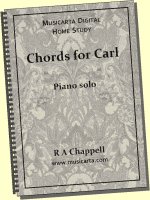
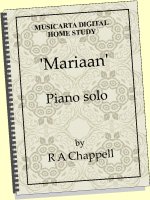
Both the 'Chords for Carl' and ‘Mariaan’ video courses build a performance step
by step, and provide a great foundation for mastering solo chord-plus-melody playing.
Lighter on theory but more than "just the dots", these pieces can be mastered even without reading music.
'Chords for Carl'
An immediately recognisable 'generic' chord sequence builds from triads in the right hand, a bass note and a broken-chord texture with an optional showy left-hand-over note.
Then comes a melody, replacing some of the broken-chord tones - a typical piano solo technique it could take years to discover by trial and error.
This methodical approach will show exactly what and how to practice - and you can try Module One free and experience Musicarta's fail-safe step-by-step learning techniques for yourself.
Listen to the final performance, below.
|
|
|
Now a fully video-supported approach to keyboard chord texture and building a full modern solo performance, this unique teach-yourself opportunity shows you only what you need to know and exactly how to learn it. |
|

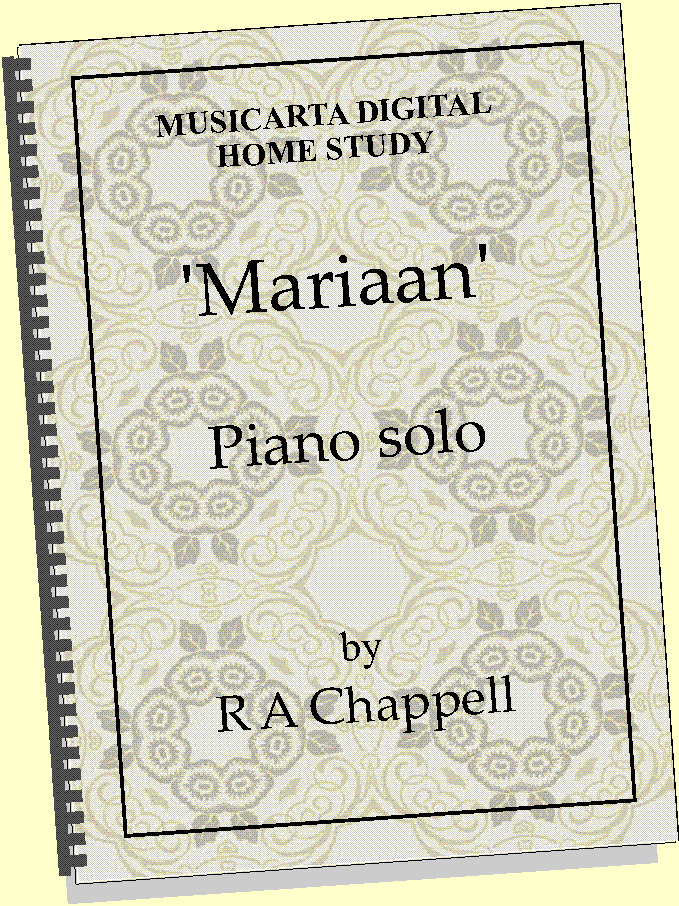
'Mariaan'
|
“Thanks for ‘Mariaan’. I'm on page 12 already - sounds lovely. My Missus agrees - says it's a lot better than listening to me plonking out ‘Michael Row The Boat Ashore’ and ‘That's Amazing, Grace’ ;-)”
Bobby, South Africa
|
In a steady four-four, 'Mariaan' is a slightly faster, more challenging example of the 'Chords for Carl' texture.
Here's a typical 'stepping stone' performance - just one chorus of the chord accompaniment only, with the tune whistled over it. ('Mariaan' comes complete with lead sheets for your soloist!)
|
The Mariaan home-study course is designed to fast-track a lovely piano solo into your repertoire, and with its many ‘stepping stone’ performances, it’s guaranteed to expand your creative horizons every time you sit down to play! |
|
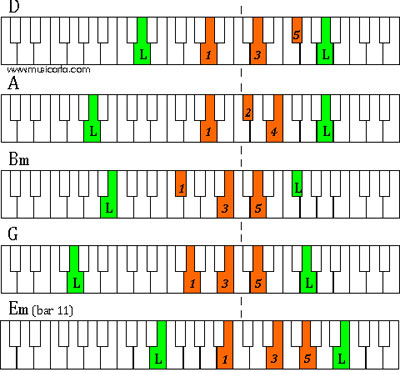
Musicarta is full of ideas for "just getting your hands on the keyboard and playing". Yes, it can be that simple!
'Chords for Carl' and 'Mariaan' are examples of the Musicarta 'left-hand-over style'. Watch more examples on the Mister Musicarta YouTube playlist, and you'll see how one Musicarta keyboard trick can be turned to a thousand uses.
'Majestic River' - chord study
Here's a dedicated chord study to give you structured, progressive practice applying broken chord textures to a chord sequence - just like the pros!
Listen to the (very basic - no strings attached!) performance and "see the music in the keyboard".
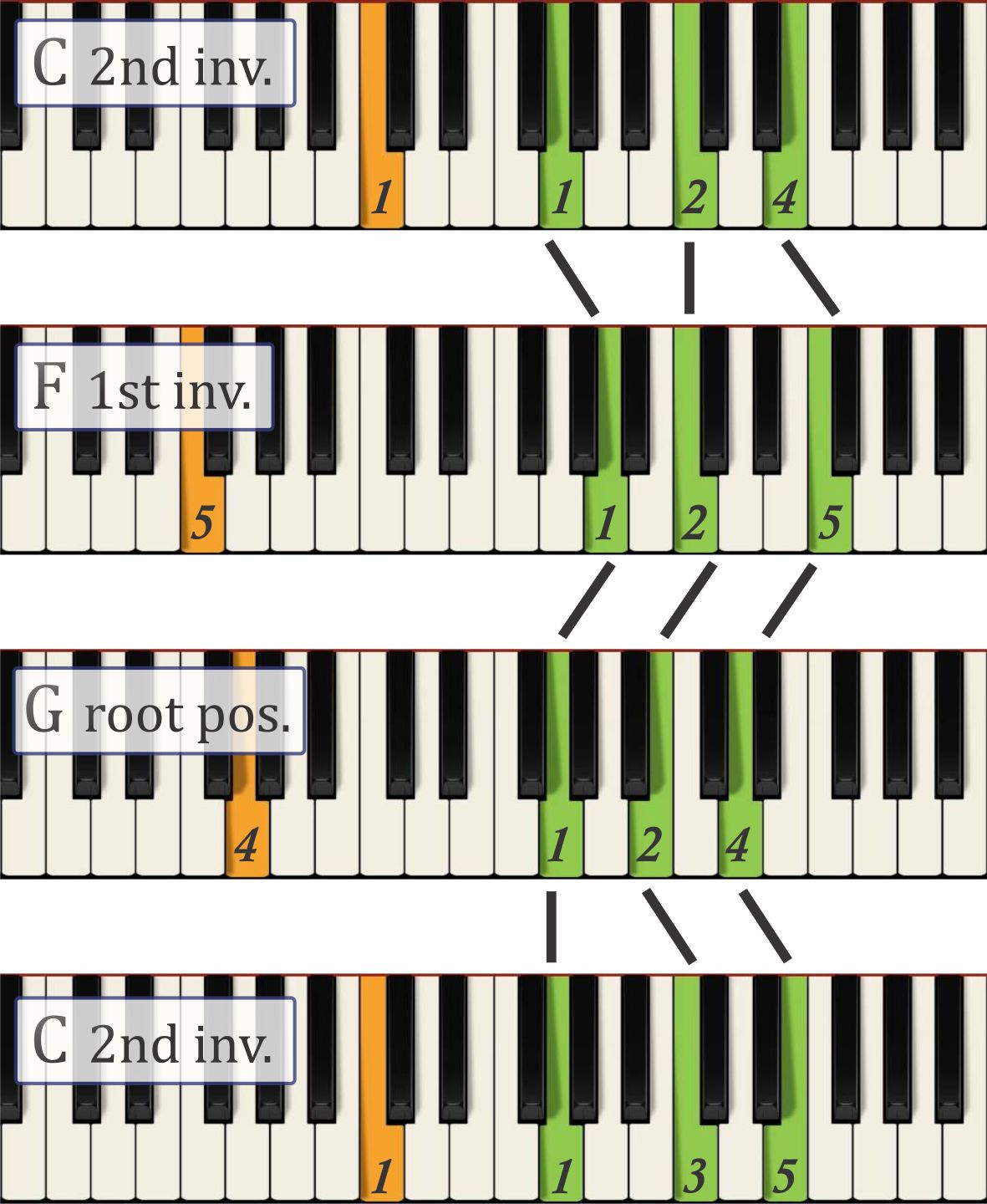 |
The audio is set to loop. Can you identify the next four chords and complete the 'A strain'? Play a 'B strain': Am 2nd inv.; Em root pos.; F 2nd inv.; C root pos.; Dm 2nd inv.; Am root pos.; G/B root pos.; C 2nd inv. Does it sound like this audio? |
The 'Majestic River' chord study is currently only available on Musicarta Patreon. Click through to check out the full offering!
'Greensleeves'
A standalone eight-lesson mainly video course designed to get your own unique arrangement of this beautiful tune into your repertoire quickly and easily.
The lessons explore how an arrangement can build in rhythmic and harmonic complexity. Take it as far as you can with an achievable performance every lesson and always something to reach for.
Listen to the 'Concert Variations' - one possible medley of the arrangements you might learn.
A nice 'time out' for the hard-working classics player, and ideal for adult re-starters. And people never tire of asking you for "something we all know"! Click through to the extensive try-before-buy series sampler page here.
|
GREENSLEEVES A two-hour-plus video course teaching beginners, continuers and classical cross-overs to craft a unique arrangement of this timeless classic from scratch – and learn a raft of 'really useful music theory' along the way. Give your musical journey a helping hand today! |
|
Piano Solos, Vol.1
|
Musicarta teaches musical creativity at the keyboard through a combination of usable music theory, easily understood keyboard textures and coached modern syncopation skills. |
|
The eleven pieces in Musicarta Piano Solos
Volume 1 all spring directly from this approach, and are created from the 'composing at the keyboard' techniques in The Pyramids Variations, Musicarta Easy Piano Style and other workbooks.
|
PIANO SOLOS Piano Solos Volume 1 is a collection of eleven solos from across the Musicarta spectrum. Each solo has a couple of pages of notes explaining how the music is put together and offering useful practicing advice. Easy-inter to inter-advanced solos with audio and MIDI files and player and a 50-page PDF (A4/US Letter). |
|
Click through to the Piano Solos Vol.1 home page for a full audio index of first lines and description of the course download.
Musicarta for teachers
Classically trained musicians frequently admire the pop musician’s ability to play by ear or from lead sheets and improvise chord sequences and melodic lines – and today’s piano pupils are increasingly demanding more contemporary content in their lessons.
Mainstream classroom and instrumental music teachers will find a ready-made creative lesson component in the Musicarta workbooks, which will themselves suggest lesson material with a contemporary (but methodical!) twist.
Study Focus workbooks and pages
The Beat and Rhythm Workbook
|
Here's a puzzler for you! 1. Well-developed beat-and-rhythm skills are an essential ingredient of modern keyboard technique, and syncopated hand patterning can generate great riffs from the simplest material. |
2. But our usual way of trying to ‘get’ difficult rhythms – namely, just trying again and again – is unscientific, inefficient and frustrating, leaving many people believing that, when it comes to syncopation and advanced rhythms, you’ve either ‘got it’ or you haven’t... |
Well, that’s just not true! With the right learning material, anybody can be much better at syncopation than they ever thought possible! What's needed is a head-on, methodical approach with rhythm skills centre-stage.
Take a look at these four exciting and challenging Workbook modules.
The Snake Dance Syncopation Challenge
|
Yes, that timeless novelty piano teachers hate - but which everyone else loves! Listen to a few samples on the right (all videos in the course proper). Nobody gets left behind in the build-up to the basic syncopated version; after that it's 'no holds barred'! |
|
It's the most fun way to get you started with big two-handed syncopations.
Syncopation and Anticipation Tenths
|
The Syncopation and Anticipation Tenths module in the Beat and Rhythm Workbook methodically to build a melodic style of two-handed syncopation which will be instantly familiar to anybody who knows their music. Listen to the development of syncopation in this simple run of tenths. |
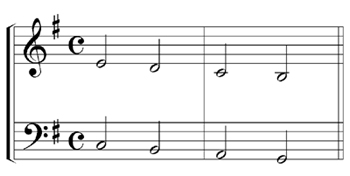 |
Perhaps not the smooth cocktail jazz you were thinking of, but...
- The rhythmic skills coached here are timeless and indispensable;
- The
simplicity of the material makes focusing on the rhythmic component easier, and
- The step-by-step progression leaves no-one behind.
The BEAT & RHYTHM Workbook
|
Most popular music has a strong rhythmic component – and the
modern-styles keyboard player needs well-developed beat and rhythm
skills just to compete. Also available on Udemy. |
|
|
The Swinging Hanon
|
Spend any time learning the piano and sooner or later you'll run into 'Hanon' - those perennial finger exercise that, well, just work...! (Why, Musicarta even has a whole Hanon video course...) So why not 'light two candles with one match' and practice crisp rhythms along with your finger warm-up? You learn the rhythms first in a static, five-finger position, then apply them to your Hanon finger warm-ups - or anything else! |
|
(Listen to the paired demonstration audios above. NB: They're videos in the course!)
Yes - you could probably make these up yourself, but - will you? Rather just grab them off the shelf, practise one a day, and hear your skills build!
Rhythmic Pentatonic Scales
|
After a crash-course introduction to these essential jazz/blues scales, this Workbook module gets straight down coaching your desktop drumming skills - an essential requirement for mastering the advanced rhythms you'll want for your jazz and blues 'voice'. Don't waste time waiting for it to happen by itself! Put yourself to the test and profit instantly from a tried-and-tested method! |
|
Access more sample content via the Beat and Rhythm home page.
Musicarta Patreon
Musicarta Patreon offers an alternative or supplement to the Musicarta workbooks and free www.musicarta.com lessons.
Great value at just $5.00 per month, you get access to:
- 'The Pyramids Variations'
- The Musicarta Beat and Rhythm Workbook
- The Musicarta Video Hanon
- 'Chords 101' (exclusive content)
- 'Majestic River' piano solo
- Musicarta Easy Piano Style video upgrade lessons
- 'Greensleeves' Piano Solo
- The 'Pentatonic Hanon' exercises (unabridged)
- Songbook + LH-over style + Enya solos - and lots more...!
Open the project home pages to view sample material or just sign up here and supercharge your creative journey!
The Musicarta Hanon
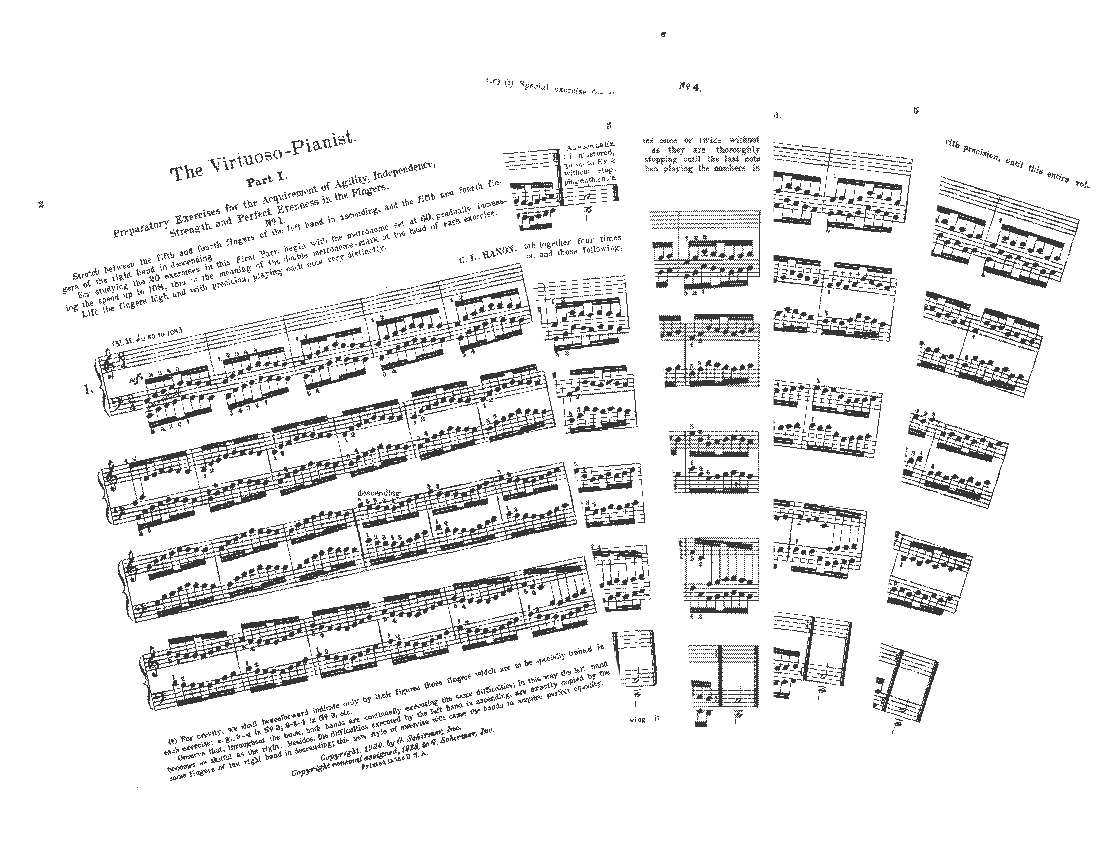
You can't study piano for long without coming across the 'Hanon' finger exercises. They're a great way to acquire and maintain good finger technique - but they're pretty boring and off-putting as they stand - as you can see (right).
So here's a video version to make these timeless exercises - and a host of useful variations - accessible and fun.
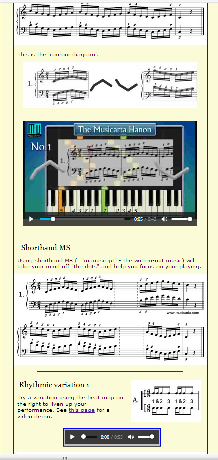
The screen shot on the right shows a typical Musicarta Hanon web page - a much more inviting experience!
The exercises are presented with lots of visual cues to help reduce dependence on the written music - like the 'contour line' shapes which mirror the up-down (pitch) shape of each exercise.
After learning to play the Hanon finger patterns up and down the keyboard, you can start on some of the variations offered to keep your practice fresh and develop new skills.
Combined patterns, the exercises in different time signatures, played in sixths and tenths, played with held thumbs (to develop finger independence), two series of rhythmic variations, variations to develop accurate chord-playing, spread the hand and practice touch variations.
This spread of variations will help you pay attention to the 'finer points' of finger technique - the things that make your playing attractive to listen to.
|
THE MUSICARTA HANON The Musicarta Hanon is a fully featured video version of these timeless finger exercises, accessible to players of all levels and orientations. Explained, demonstrated and expanded with ten sets of stimulating and challenging variations, this collection will help unlock your musical potential. |

|
|
Click through to the course home page or hit the sign-up button above, and solve your finger exercise needs for years to come!
'Chords 101' - at Musicarta Patreon
|
“Thanks! I have made the three copies of your ‘Visual Glossary’ for our organist and piano player to play chords with me when I play my guitar for service in church.”
Keith, Owosso, USA
|
Musicarta's 'Chords’ material is now part of the Musicarta Patreon Tier One offering.
Any creative musician knows a lot about chords, and taking a methodical attitude to studying will speed your progress radically.
In the Musicarta Patreon Chords zone, you'll find:
- Triad Shape Drills to put all the inversions in all the keys under your fingers, and give you a 'feel' for the keys you'll need to know.
- The Scale Keyboards - a unique visual glossary of the keyboard as affected by key signatures. No more fumbling around for the right black keys!
- The Musicarta Chord Generator - a visual guide to all the major and minor triads in all the major and minor keys. Stare at this for a few days, and the chords will stare right back at you!
- A comprehensive video tutorial on how to form and recognise triad inversions. Triads can have any of three chord-tones at the top, and they should all be equally familiar to you.
|
“I have made really good progress on the Pyramids Variations. The information that you connected me to hints at all that I aspire to in my piano studies; greater chord fluency and being able to play by ear.”
Chris, Cape Town
|
- Broken chords are inversions played - broken up...! 'Practically music already', broken chord pattern are the building blocks of nearly all keyboard accompaniment textures.
- Suspensions are a great way to get more out of the chords you already know, and a huge part of 'what music sounds like'. Bringing suspensions into your music-making is a real game-changer.
- Sevenths chords are baffling, but unavoidable. Five types, four inversions, in twelve keys... The only way to get a handle on them is to master the theory (it's not that bad!) and play the drills.
- The Roman Numeral System of naming chords is a way of 'thinking about chords in any key'. That is, thinking and talking about harmony, pure and simple. Essential for taking it to that 'next level'.
- Most keyboard accompaniments
are broken chord patterns using the root, fifth, octave and tenth. This
series of workouts explains and drills left hand accompaniment patterns
you'll find useful for the rest of your playing life.
The Musicarta 'Chords 101' collection of video-rich tutorials is an invaluable contribution to the ambitious contemporary-styles keyboard player's ongoing education.
Click through here to the series home page - or just sign up for Musicarta Patreon right here - it's the only place this collection is available!
Be a creator - not (just) a copier!
The Musicarta site iss peppered with click-to-play audio samples of solo piano performances you can learn to play. If you like what you’re hearing, you will find all the ‘how-to’ coaching you need - free on-site or in the downloads.
More importantly, these piano solos are all pure examples of ‘messing around with chords’ in practice, and have been improvised using the 'composing at the keyboard' techniques explained and coached in the Musicarta teaching material.
So, if you want to compose your own piano music, Musicarta’s methodical approach to keyboard creativity – the most accessible on the web – is right here at hand!
Study focus: Scales
There are two good reasons for learning and practicing the musical scales. One is to develop finger dexterity; the other is to learn the keys.
All musicians should practice playing up and down the notes of their instruments quickly and evenly. Scales offer a perfect answer to the ‘Which notes?’ question and simultaneously teach you the ‘look and feel’ of the advanced keys you need to know if you want to be a ‘real’ musician.
The Musicarta Scales page has solutions to take the pain out of learning scales (and keys) – and maximise your scale practice benefits.
Study focus: Suspensions
|
Suspensions – the pulling-out-of-place and releasing back of chord tones – make chords more interesting, and are a great way of getting more mileage out of any chord sequences. You'll recognise the technique as soon as you hear it - play the generic pop demonstration on the right. |
|
Then listen to the suspension-release technique applied to some
Musicarta Key Chords material - a piece called 'Longing', from the Solos No.1 Album.
The Musicarta 'Suspensions' material is now in the 'Chords 101' collection, exclusively available on Musicarta Patreon (sample material page - or sign up right away).
Other artists
Enya’s haunting Celtic melodies are a gift to the ‘New Age’ piano soloist, and Mr Musicarta's annotated Enya videos and associated Musicarta Patreon pages sale as close to the copyright rocks as
Enya’s keyboard performance texture is easily grasped and a great springboard into keyboard improvisation – indeed, it's the basis for the Musicarta Easy Piano Style. See the videos on the YouTube playlist.
Jann Tiersen’s ‘Comptine’ has also become a much-loved classic of its type. It’s within most players’ reach and offers many opportunities for variation and improvisation.
Musicarta’s ‘Comptine’ improvisation mini-series shows you how to practice and master this little gem, which should have a permanent place in your repertoire.
Why not watch one of the many YouTube ‘Comptine’ videos, open the Musicarta ‘Comptine’ improvisation page and get started right away?
The series is one of the many modules with accompanying free MIDI files to download, so you can see-and-hear
the musical examples and improvisations playing on MidiPiano or Synthesia - safe, simple virtual keyboards that could speed your progress.
Keeping it alive
Musicarta knows that keeping your musical development
powered up and on track is a mission – and is ready to try and help. First and foremost, you will want to subscribe to the newsletter.
|
Subscribe to the monthly Musicarta newsletter for introductory offer prices on new releases, reward discounts on regular courses - and encouragement to keep your creative flame burning bright! |
|
Of course, you'll bookmark your favourite Musicarta page(s) to make getting back to work and play easy, and once here, you can search the site from any page using the Search tab in the left-hand column. There’s an index facility on the Search page as well.
Mister Musicarta YouTube (see next section) also premieres new material regularly – subscribe to the channel to receive news of new postings.
Mister Musicarta YouTube/Facebook
The Musicarta YouTube channel (MMYT) hosts hundreds of short teaching and performance videos, and is an important part of Musicarta’s educational material.
Some of the videos are trailers for Musicarta home study downloads (arranged conveniently in playlists). There are ‘Diary’ entries also – ongoing explorations of workbook material like the Pentatonic Hanon exercises.
(NB: These free-to-air videos all have extra learning material or fuller versions reserved for Musicarta course participants and Patreons!)
There are pure theory videos covering inversions and so on, pure performance videos like ‘Mariaan’ and ‘Southern Comfort’, and videos which illustrate certain chord sequences like 'I and vi in Three Places' or harmonic techniques like suspensions.
Spend a little time browsing the channel, and subscribe to get automatic notice of new uploads.
There’s
are links to the playlists in the web page right-hand column
(bottom) site-wide.
New postings are also signaled on MisterMusicarta Facebook. 'Like' to stay in touch.
So...
Welcome to Musicarta!
Please stay and browse the pages via the links on this page or using the navbar tabs on the left. Bookmark us and come back regularly to see what’s new – you’re sure to find something to get your creative juices flowing!
Musicarta News and discount codes
Subscribe to the monthly Musicarta newsletter for introductory offer prices on new releases, reward discounts on regular courses - and encouragement to keep your creative flame burning bright! |
|
|
OUT NOW! |
THE MUSICARTA BEAT & RHYTHM WORKBOOK At last! An effective approach to keyboard rhythm & syncopation skills. Learn more! |
ONLY $24.95! |


 THE LOGO

MUSICARTA
SECTION LINKS |
The MusicartaA methodical approach to keyboard syncopation for
|
PUBLICATIONS
exciting keyboard
creativity courses
CHORDS 101
WORKBOOK

~HANON~
video course
Musicarta
Patreon
PENTATONICS
WORKBOOK
video course
Creative Keyboard
video course

BEAT AND RHYTHM
WORKBOOK

- Volume 1 -

12-BAR PIANO
STYLES WORKBOOK
MUSICARTA MODES
WORKBOOK
PIANO STYLE
CANON PROJECT
video course
VARIATIONS
video course
- Piano Solo -
video course
- Piano Solo -
YouTube playlists